
Fireworks AI Configuration
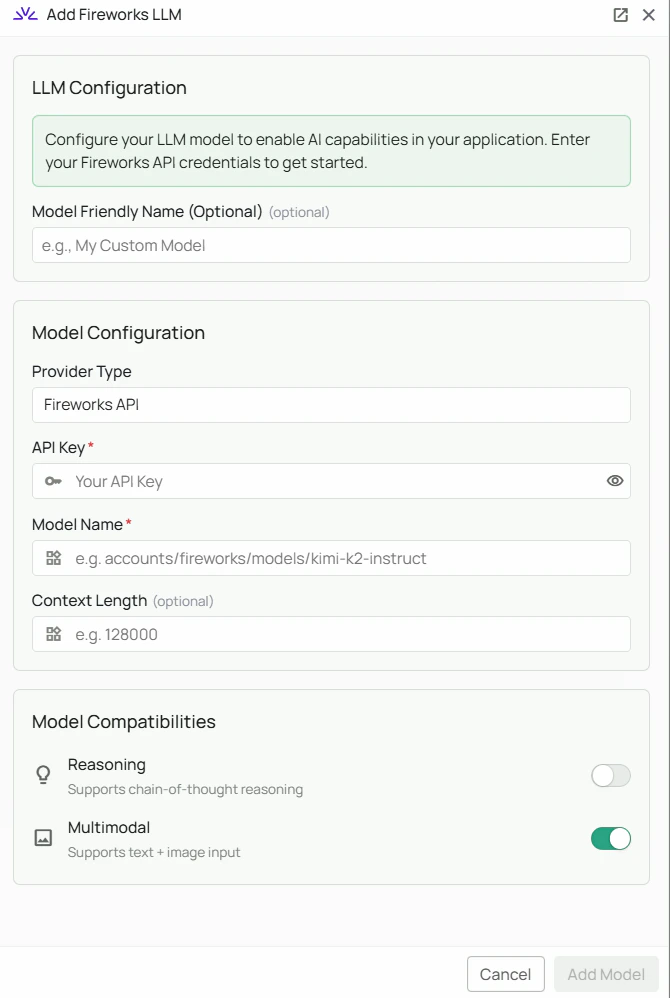
Required Fields
API Key *
The API Key is required to authenticate your requests to Fireworks AI’s services. How to obtain an API Key:- Log in to the Fireworks AI Console
- Navigate to the “API Keys” section
- Click “Create API Key”
- Copy the generated API key
Model Name *
The Model Name field defines which model you want to use through Fireworks AI. Model names follow the formataccounts/fireworks/models/<model-id>.
Popular Fireworks AI models include:
accounts/fireworks/models/kimi-k2-instruct- Moonshot AI’s Kimi K2 instruction-tuned model, optimised for agentic and tool-use tasks
- For agentic tasks and tool calling, select
accounts/fireworks/models/kimi-k2-instruct - Browse Fireworks AI’s model library for the full list of available models
- Use the exact model path shown in the Fireworks model catalog
Configuration Steps
As shown in the image above:- Click Configure on the Fireworks AI provider card
- Enter your Fireworks AI API Key in the designated field (marked with *)
- Specify your desired Model Name in the full path format (marked with *)
- Click Add Model to save and validate your credentials
Both the API Key and Model Name are required fields to successfully configure Fireworks AI integration. Use the full model path (e.g. accounts/fireworks/models/kimi-k2-instruct).
Usage Considerations
- API usage will count against your Fireworks AI account’s quota and billing
- Different models have different pricing — check Fireworks AI pricing for details
- Fireworks AI provides:
- Fast inference with production-grade reliability
- Access to a broad catalog of open-source models
- Competitive latency for real-time applications
Troubleshooting
- If you encounter authentication errors, verify your API key is correct and has not expired
- Ensure your Fireworks AI account has billing set up if you are on a paid tier
- Check that the model name uses the full path format:
accounts/fireworks/models/<model-id> - Verify the model is available in the Fireworks model catalog
- If you are experiencing rate limits, check your usage in the Fireworks AI Console dashboard